Sprocket
In this section we will have a closer look at how you can use Sprocket screen to control the system during the CPT operation in Manual Mode.
Navigation
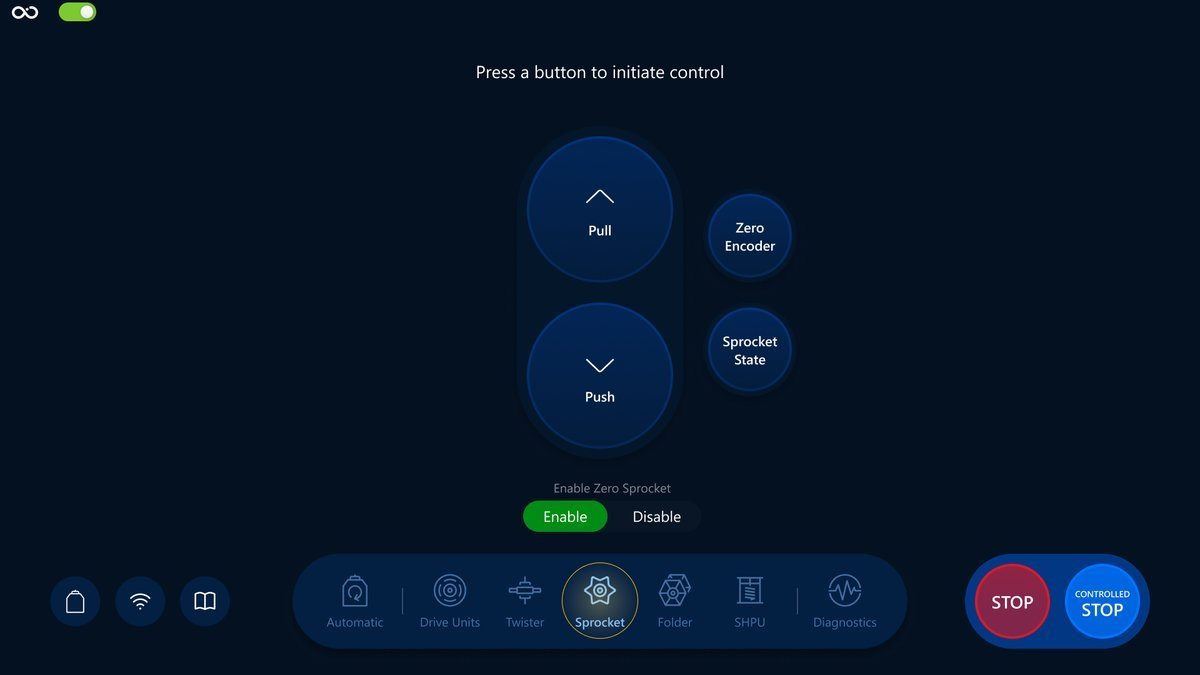
Choose the Sprocket icon in the navigation bar for navigation:
Controls
We will have a look at a brief description of the controls, their responsibilities and also how it reflects on the Visualization screen.
Push and Pull
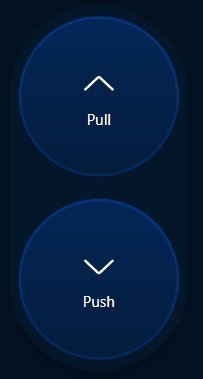
Are responsible for starting rotating the Sprocket in push and pull modes.
The buttons:
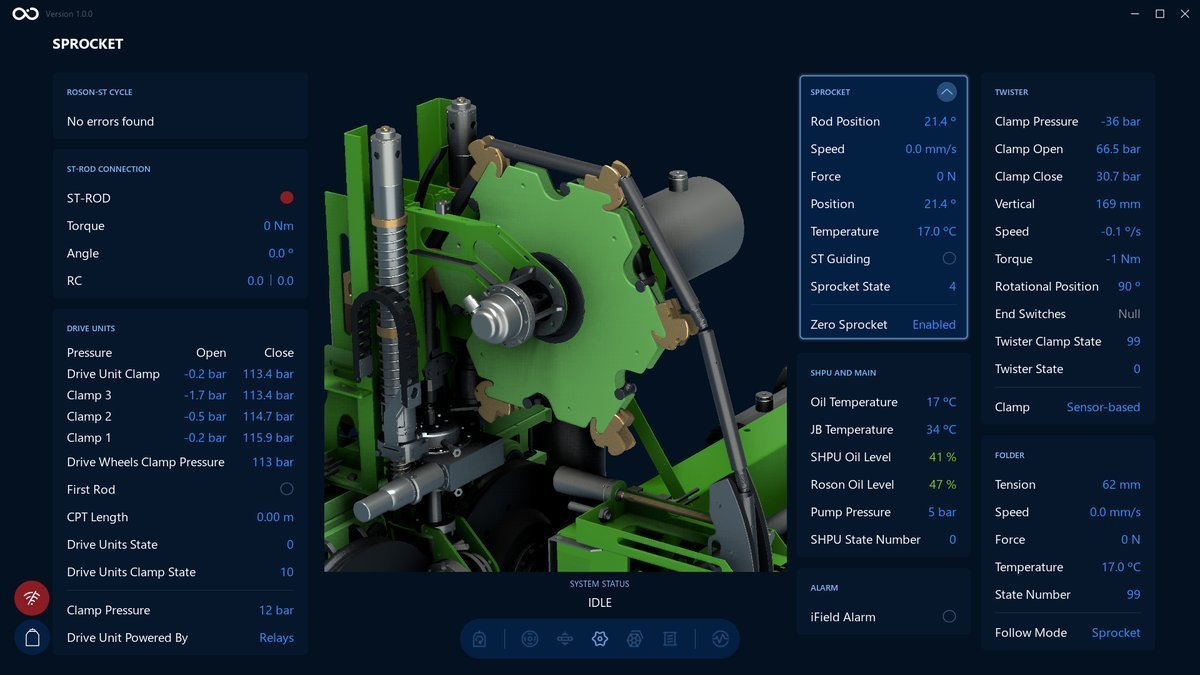
An example of the Visualization screen after Pull button is pressed. We can see the values changed in the Sprocket section:
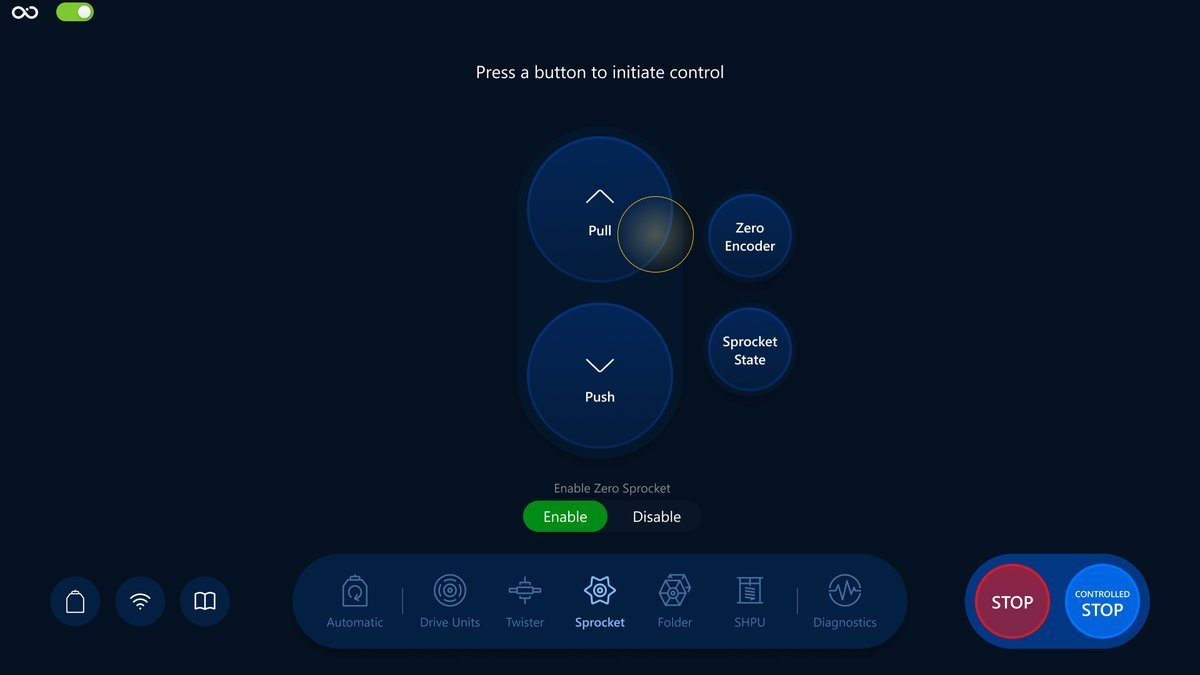
Tap on the Controlled Stop button to stop the process.
Zero Encoder
Runs Zero Encoder command.
The button:
When "Enable Zero Sprocket" is switched to Disabled, the "Zero Encoder" button is also disabled.
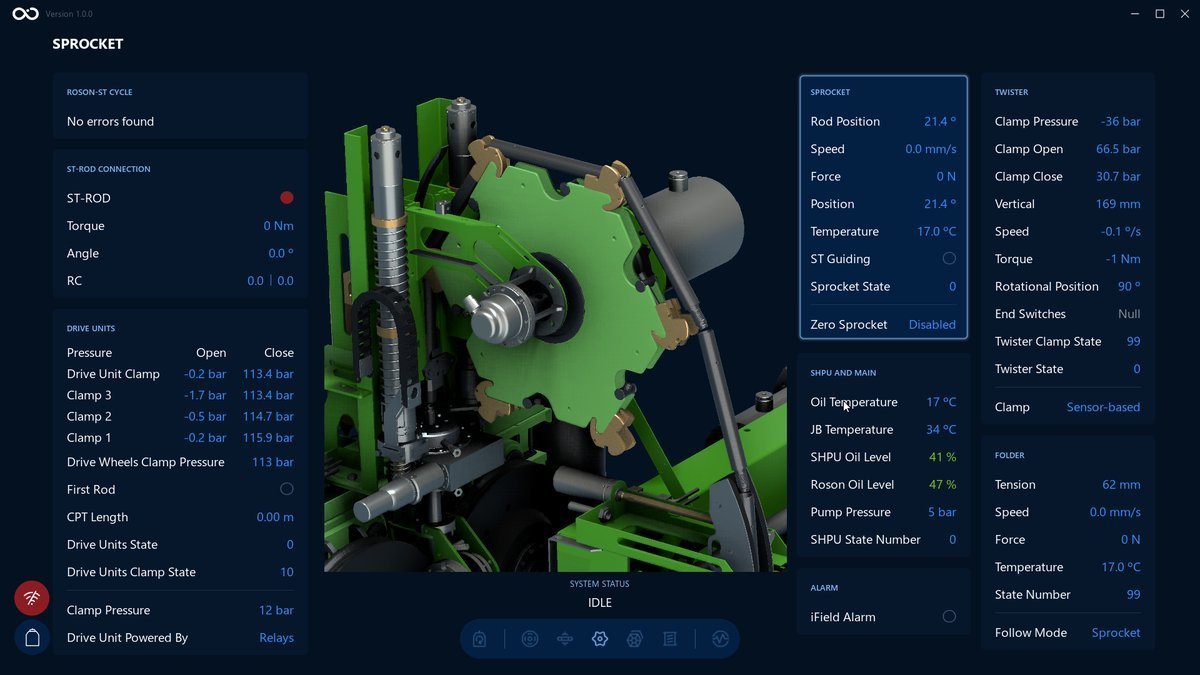
Visualization screen after tap on the zero encoder button. We can see the values changed and highlighted in the Sprocket section:
Sprocket State
Opens a modal where an operator can set the Sprocket State.
The button:
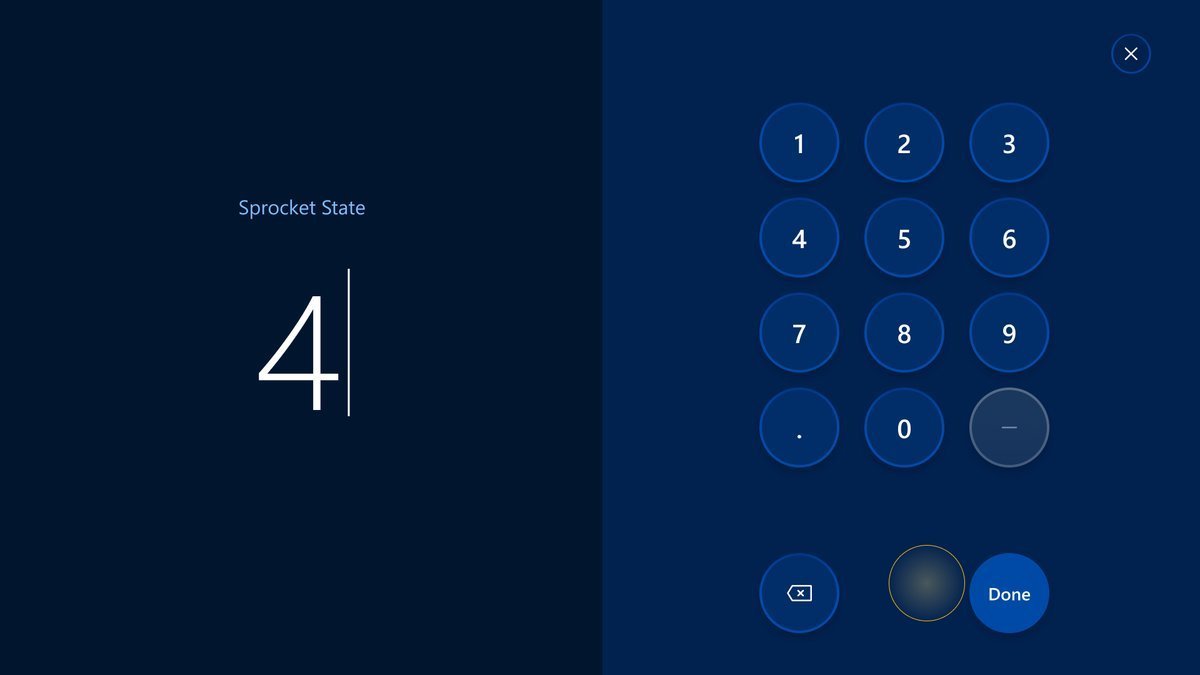
An example of the Visualization screen after changing the Sprocket State value to 4. We can see the Sprocket State value changed:
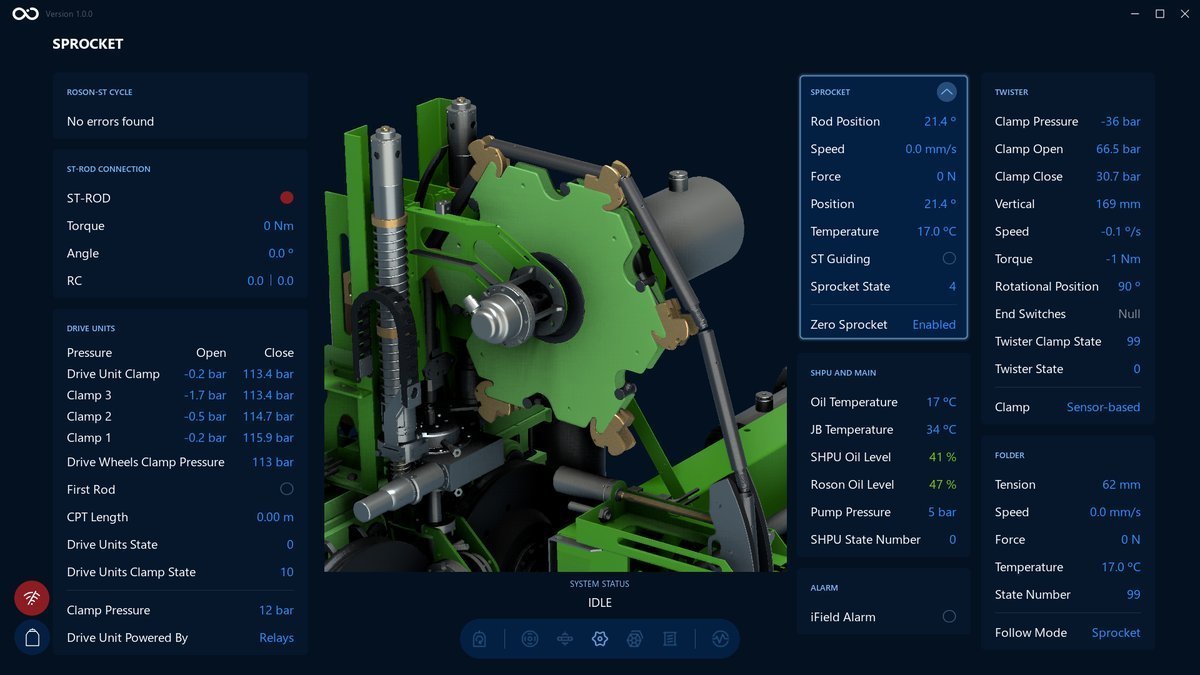
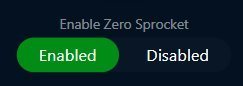
Enable Zero Sprocket
Tap to switch between Enabled and Disabled modes.
The switcher:
An example of the Visualization screen after Enable Zero Sprocket switched to Disabled. We can see the Zero Sprocket has changed:
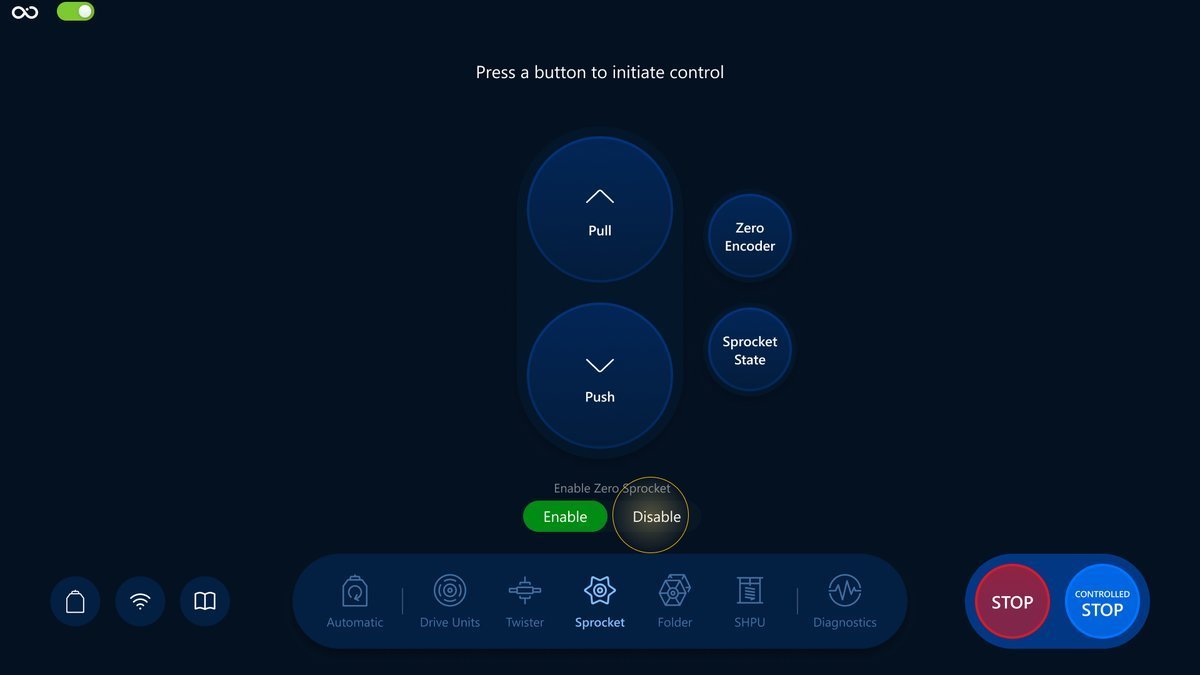
When Enable Zero Sprocket switched to Disabled, Zero Encoder button also disabled.
What's next?
Feel free to go to the next section and learn the Folder controls in more detail: Folder overview