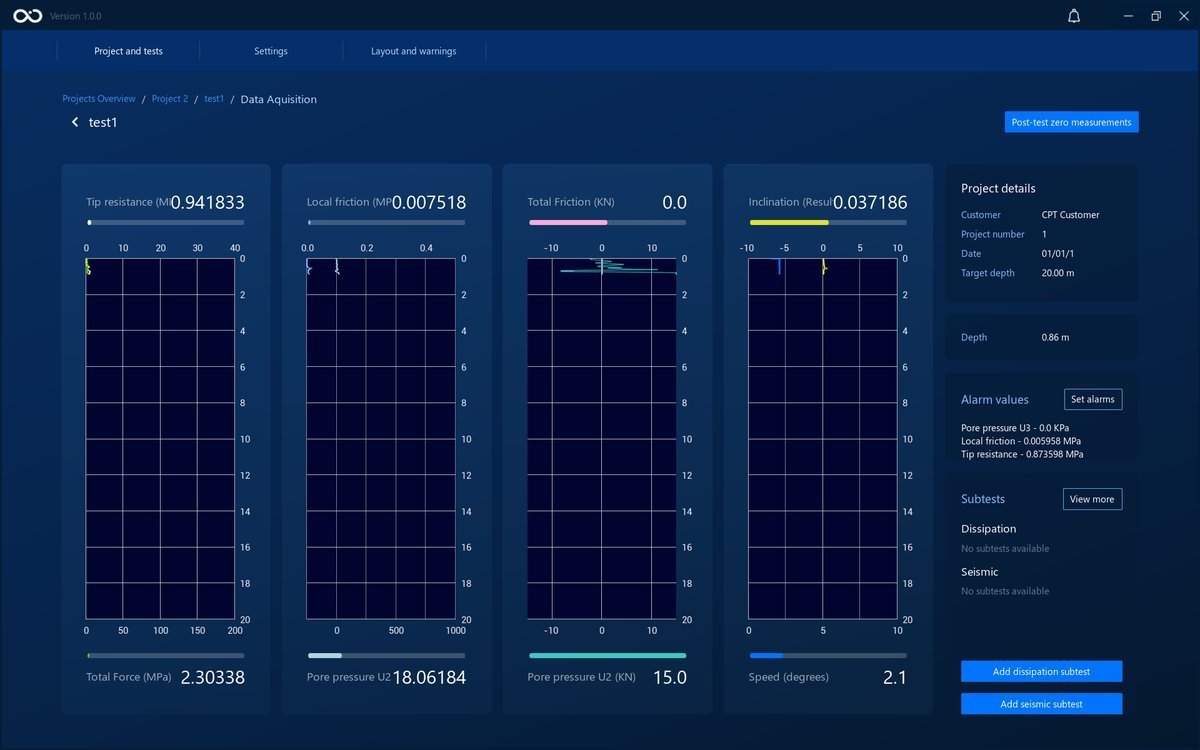
Alarms
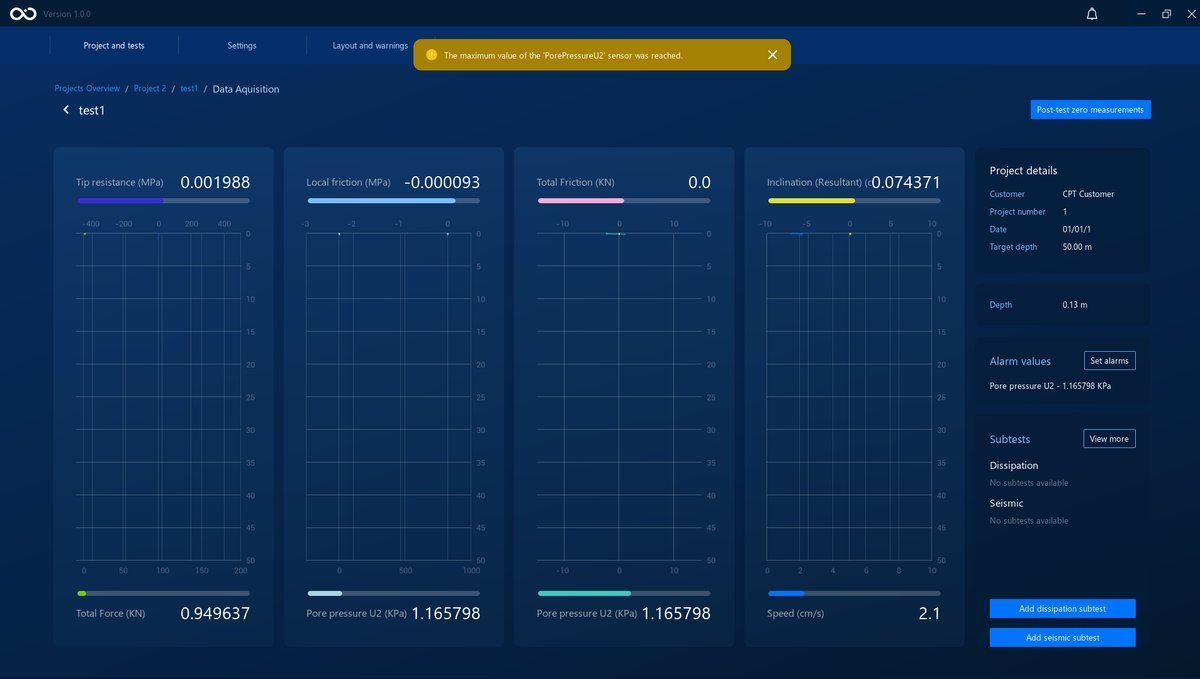
By setting Termination Alarms, you can set minimum and maximum values for any channel. You'll get a notification when that channel goes under or over those values, and the Data Acquisition process is paused. This will also trigger a Controlled STOP on the Roson. The image below shows when the Data Acquisition is paused and the responsible alarm's notification.
Set an Alarm
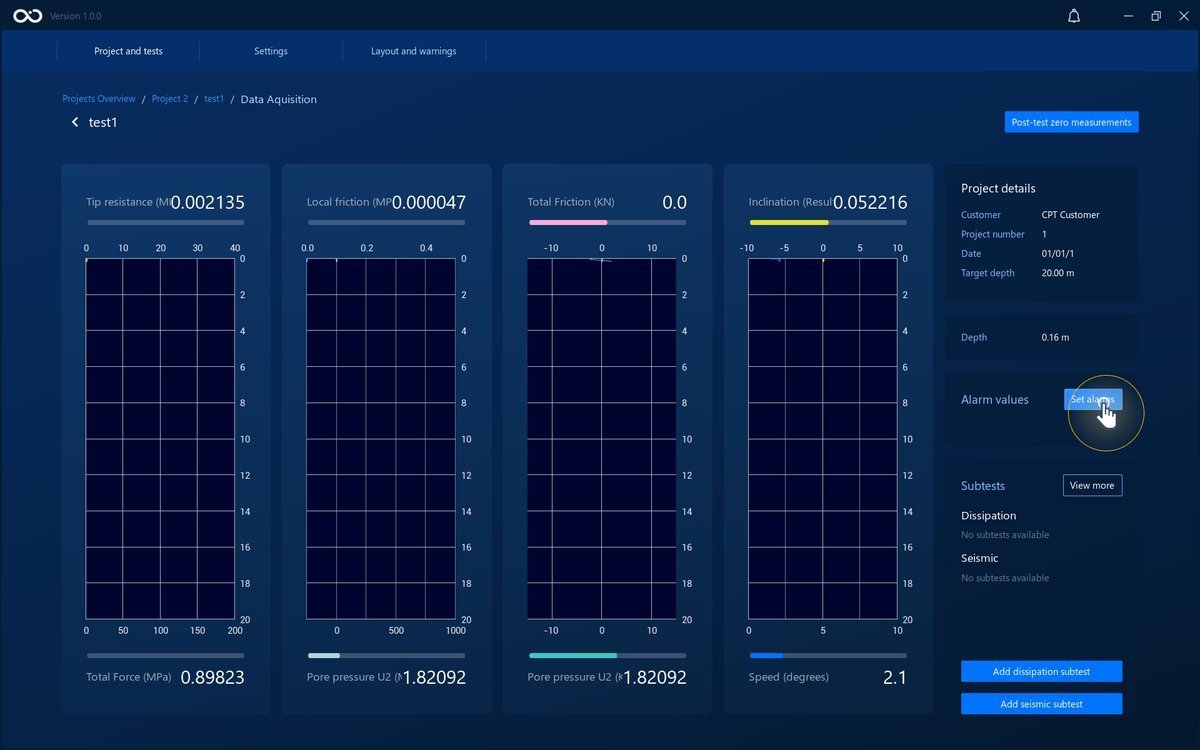
The action to set an alarm can be done in the Data Acquisition phase of the test. To do that, click the Set alarms button on the Test Graphs page.
You can pick the channels to add alarms to in the dropdown button. The alarms available in the dropdown are given by the modules installed on the Roson.
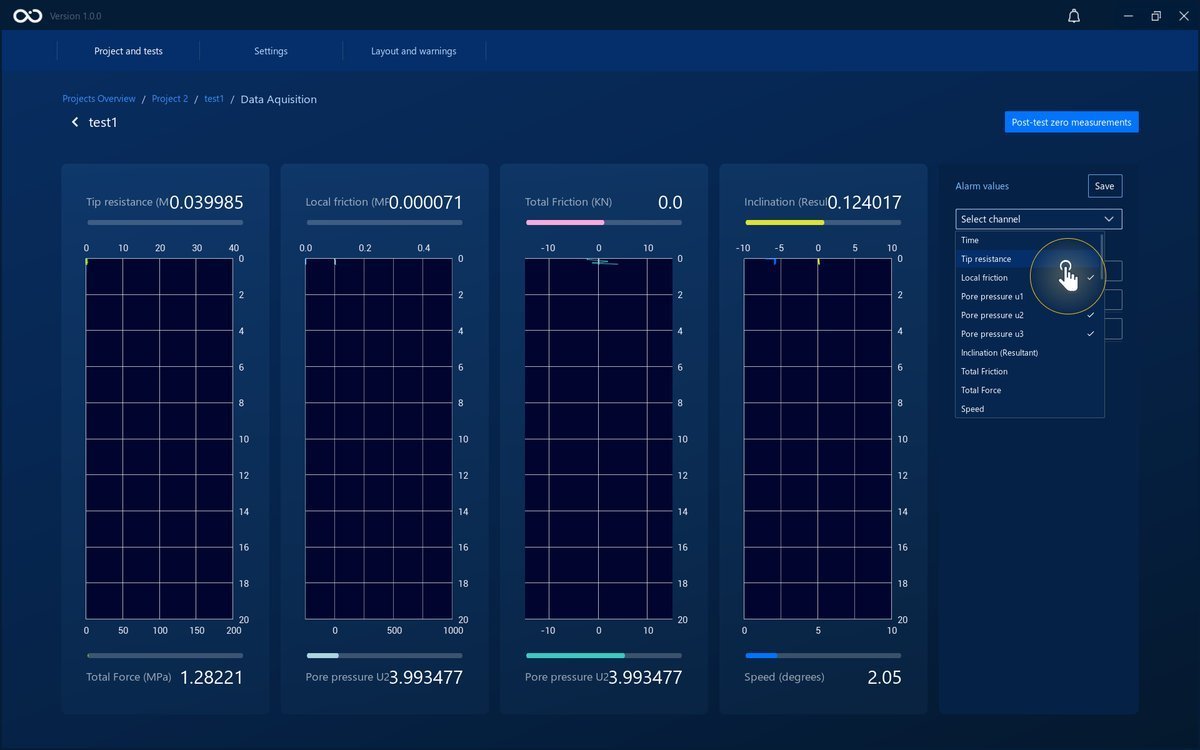
With the chosen channels, you can now write the minimum and maximum values to which the alarms react.
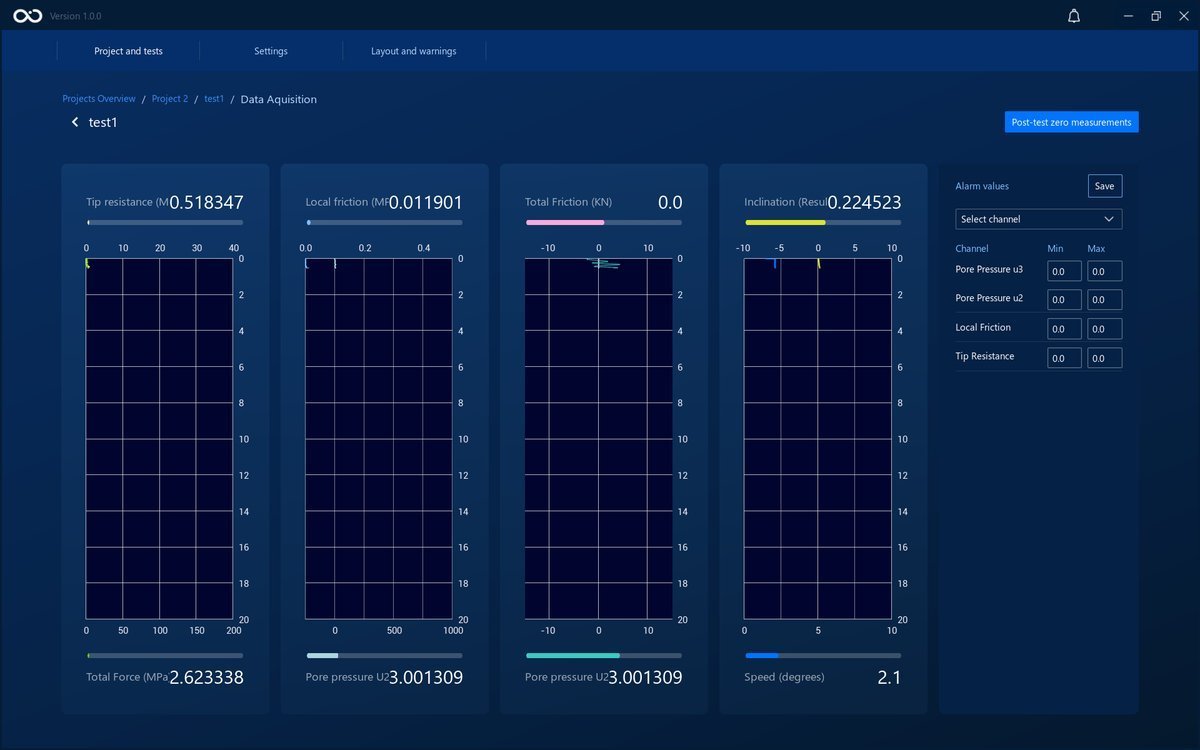
To save the alarms, click the Save button.
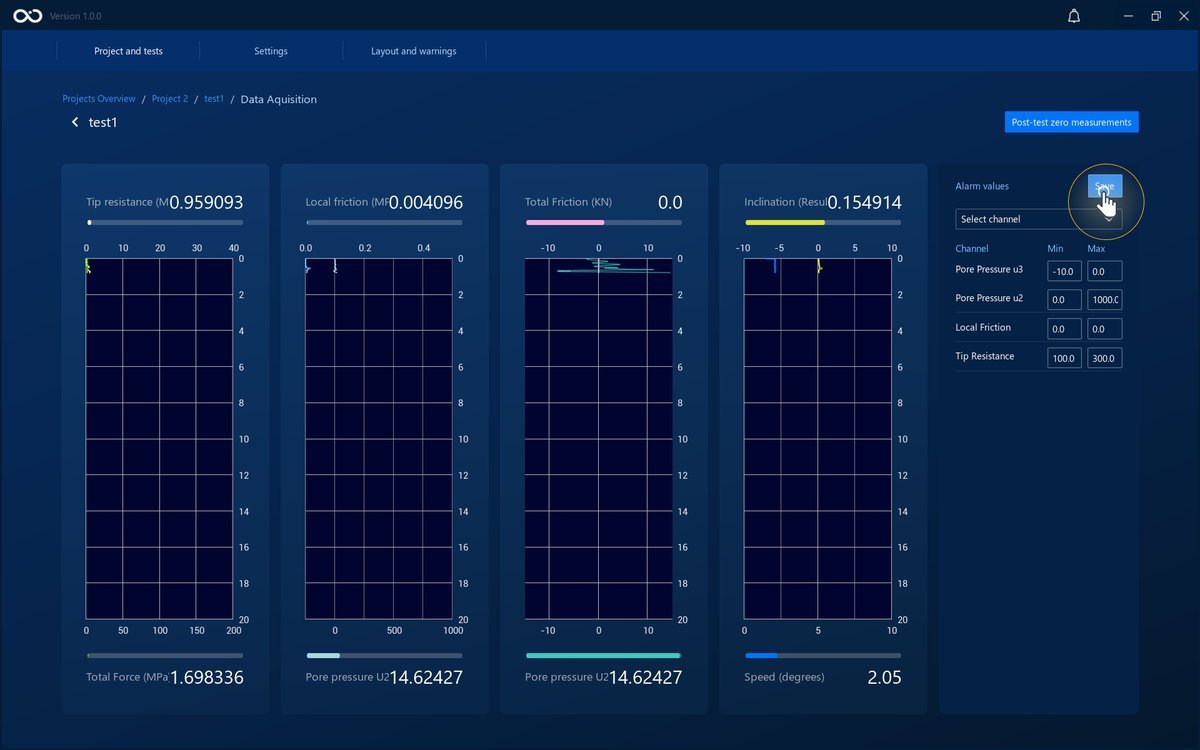
The alarms will now be set. You can see them in the panel to the right of the graphs.