Projects
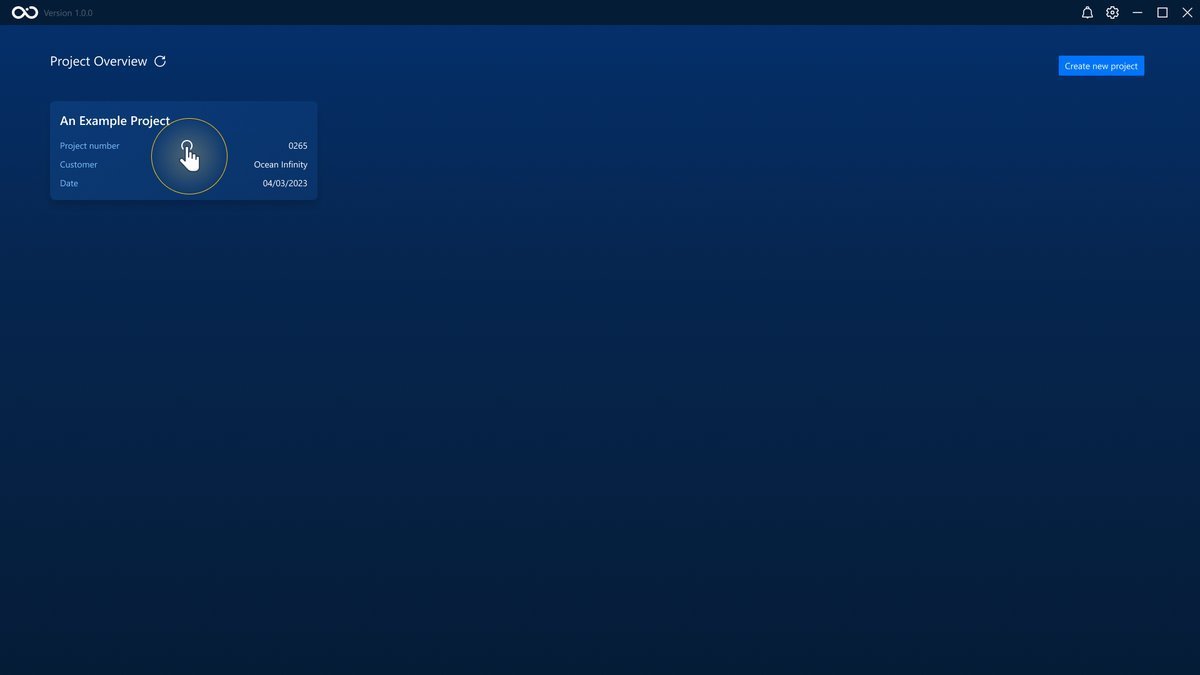
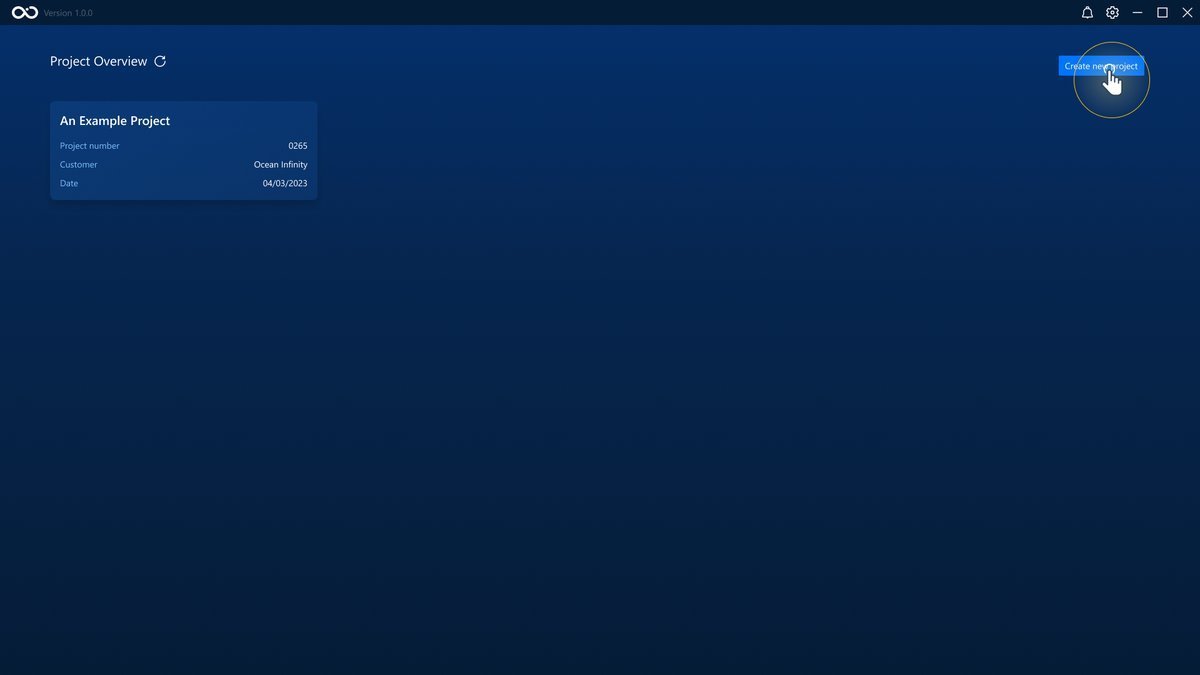
When opening the application, we are greeted by the Project Overview page. All the projects that were created can be seen on this page. Each card contains a summary of the details of its project. We are taken to the project dashboard page by clicking a project card.
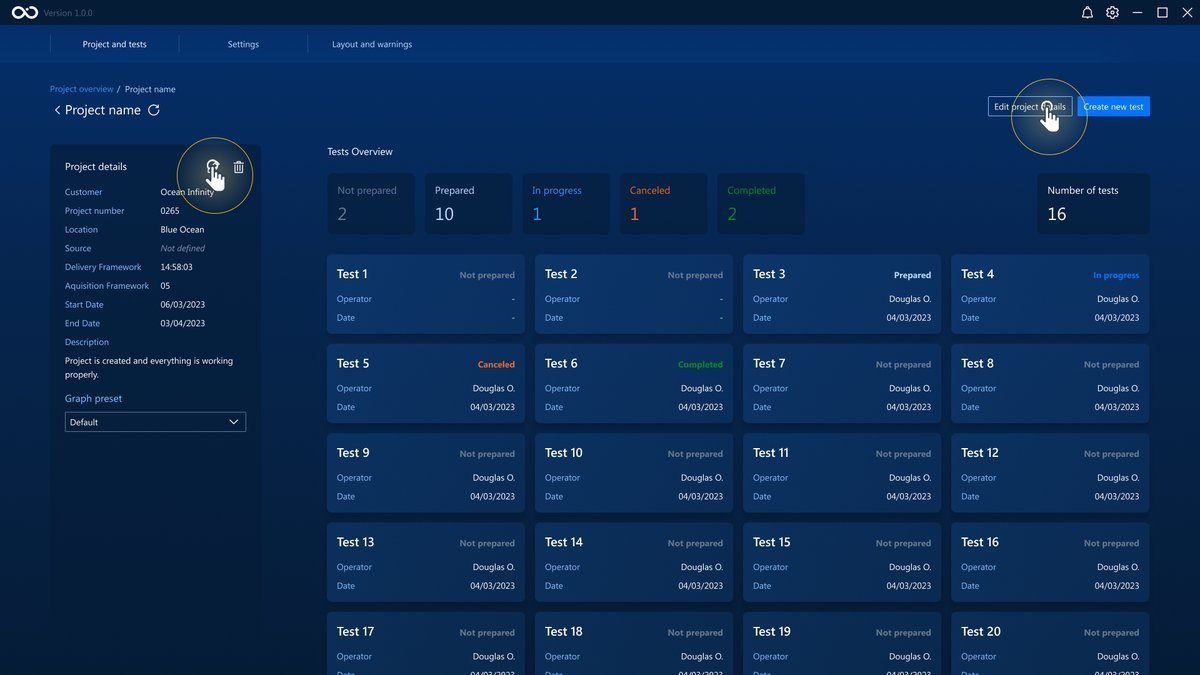
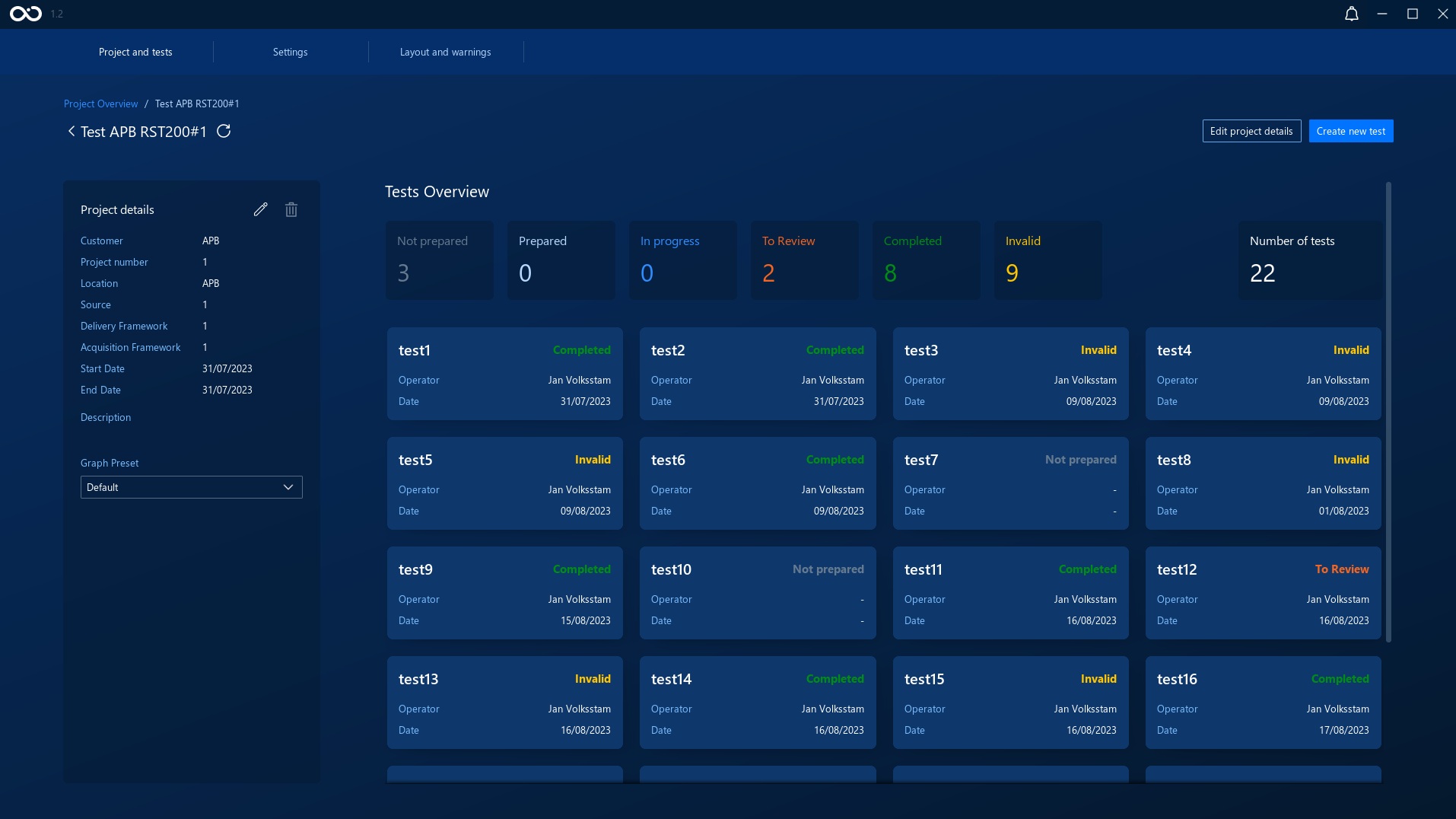
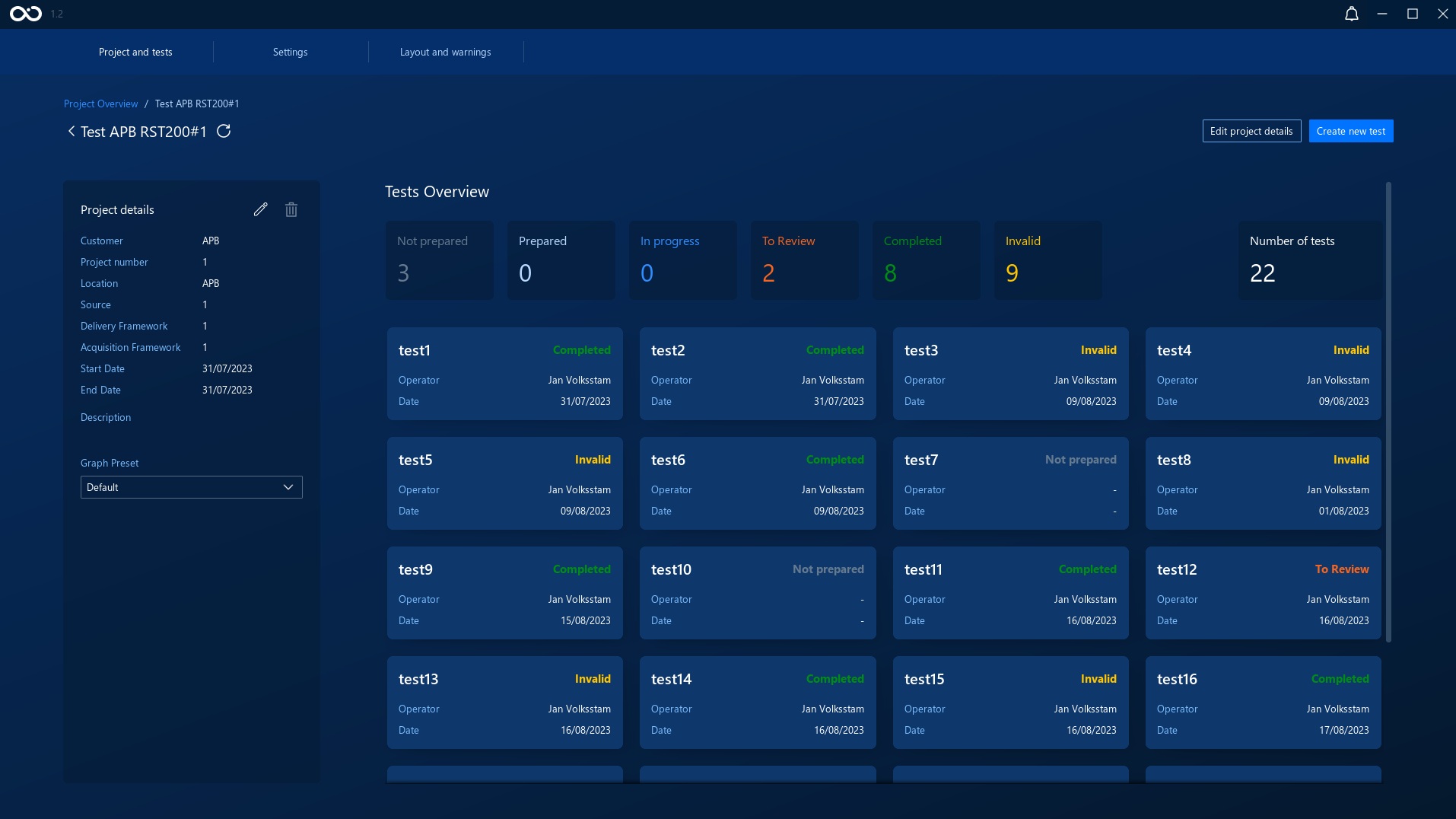
The project dashboard contains the project's details and gathers all the tests done in that project.
Create a New Project
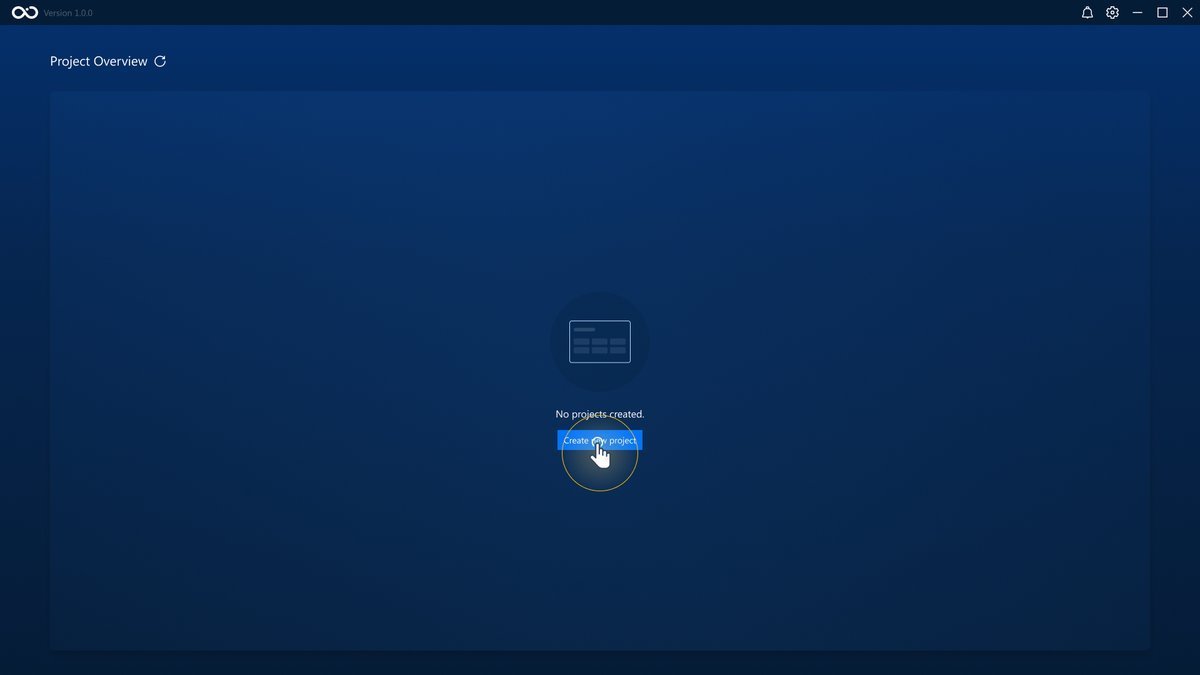
To create tests, a project that will represent all the tests on a given operation should be created beforehand. You can do so by clicking the Create new project button in the Project Overview screen.
Note
To automatically upload the data files to shore, please use the global project ID as the Project name, for example INTOI091085. This is paramount, otherwise we won't be able to match the folders between the ICC PC and the folders in the M:/ drive. In case of doubt, please align with the responsible to process the data in DATA environment.
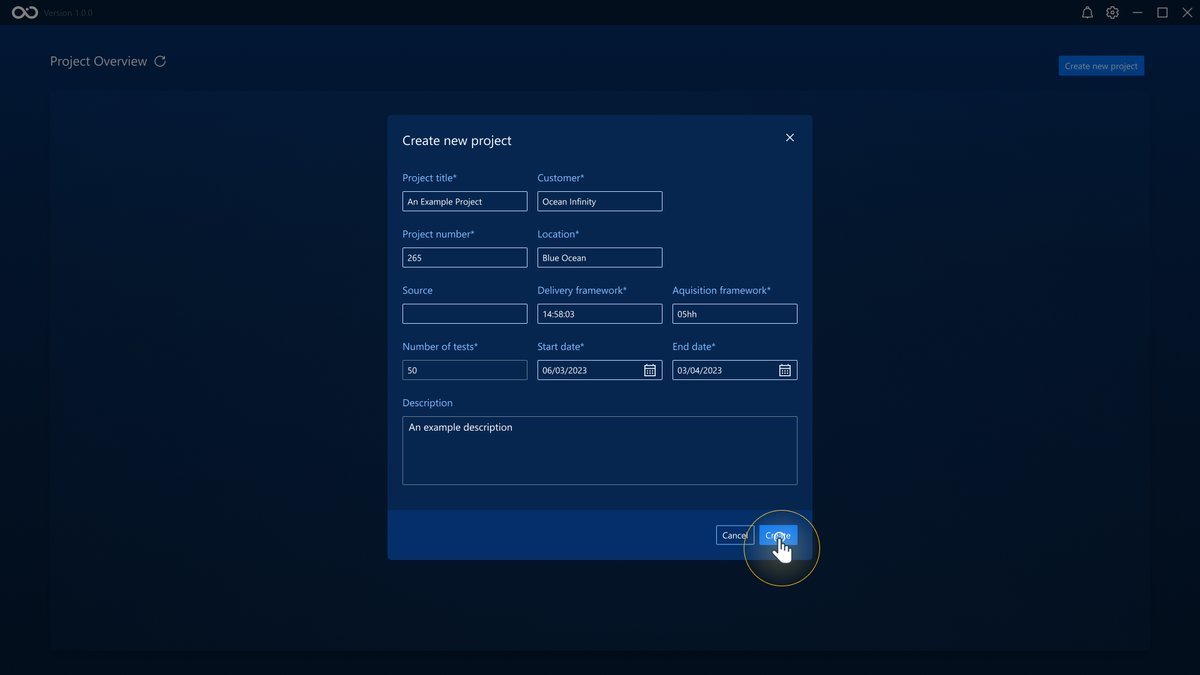
This will open a modal where you can write the new project details. Note that fields that have a * next to them are mandatory. To jump from one field to the next, press the Tab button on the keyboard, and Shift+Tab to move to the previous field.
In this modal, you can already set the number of tests for the project to be created with. These tests will start as Not prepared (see Tests for instructions on how to set the tests details).
When all the mandatory fields are filled in, the Create button will be available. Click on it to create a new project. Click on Cancel to cancel the project creation and return to the Project Overview.
Once a project has been successfully created, you will be taken to the dashboard of the newly created project.
Delete a Project
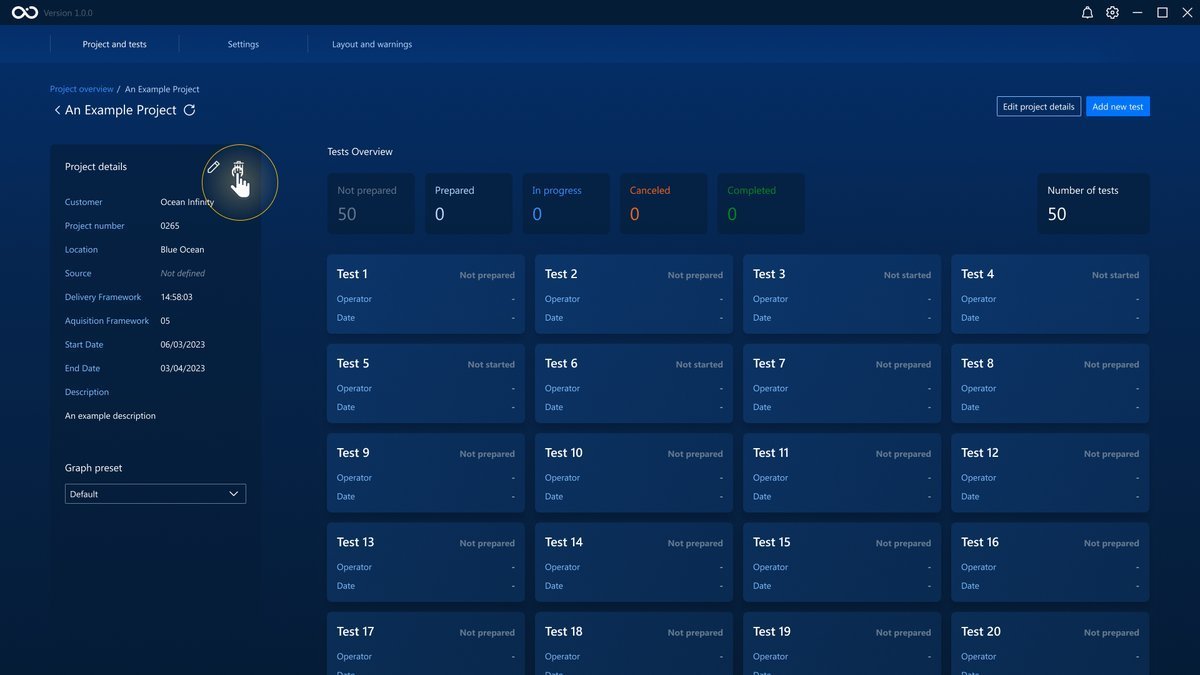
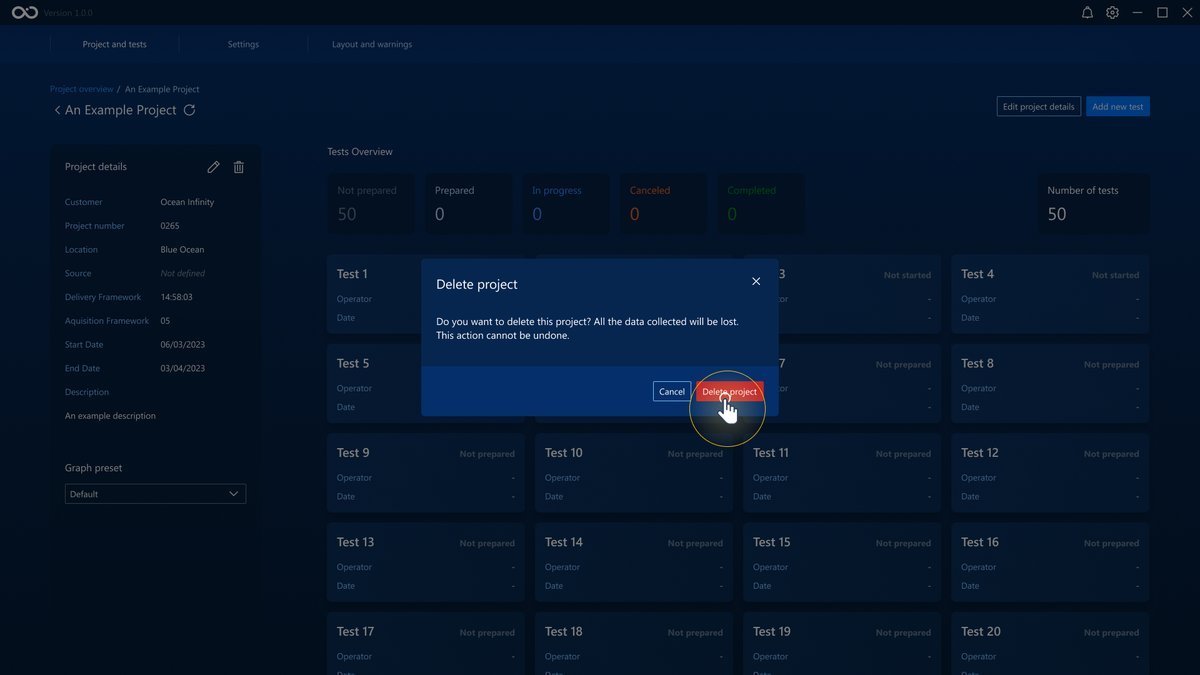
Click the Trash button in the Project Dashboard to delete a project. This button will be disabled if the Project already contains any Completed or To Review tests (see Tests for an explanation of tests states).
Edit a Project
The project details can be edited after creation by clicking either the Edit Project button or the button in the Project Dashboard.